
1. הקדמה
This manual provides detailed instructions for the installation, operation, and maintenance of your Zenec ZE-NC3711D navigation device. Please read this manual thoroughly before using the device to ensure proper function and to maximize your user experience. The Zenec ZE-NC3711D is an advanced in-car navigation and multimedia system designed for specific vehicle models, offering a range of features for navigation, entertainment, and communication.
2. פּראָדוקט איבערview
The Zenec ZE-NC3711D features a digital 6.5-inch WVGA TFT HD LCD screen with LED backlight, providing clear visuals at an 800 x 480 pixel resolution. Its animated ZENEC Graphical User Interface (GUI) supports 'slide-touch' operation for intuitive control. This device integrates navigation, multimedia playback, and Bluetooth hands-free functionality.
שליסל פֿעיִקייטן:
- Pre-loaded maps for 43 European countries, including Premium Points of Interest (POIs).
- 3D High-Definition satellite navigation with realistic terrain and object display.
- Integrated CD/DVD drive supporting various formats, including Xvid.
- USB, SD, iPod, and iPhone connectivity for music and video playback, with Apple album artwork support.
- Bluetooth for hands-free communication.
- Compatibility with Opel OE computer for date/time settings.
- Designed for specific vehicle models: FIAT Ducato III (250/251) 2006-2011 and FIAT Ducato III Euro 5 (250/251) from 2011.
דיווייס אויסלייג:
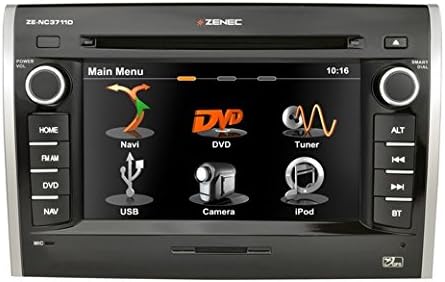
פיגורע 1: פראָנט view of the Zenec ZE-NC3711D navigation device, showing the main menu on its 6.5-inch touchscreen. The menu displays icons for Navi, DVD, Tuner, USB, Camera, and iPod. Physical buttons are visible on both sides for functions like Home, FM/AM, DVD, NAV, ALT, track controls, and Bluetooth.
3. סעטאַפּ
The Zenec ZE-NC3711D is designed for integration into specific vehicle dashboards. Due to the complexity of vehicle electronics and the precise fit required, professional installation by a qualified technician is highly recommended. Incorrect installation can lead to damage to the device or the vehicle's electrical system.
ערשט קאַנפיגיעריישאַן:
- מאַכט אויף: After installation, turn on your vehicle's ignition. The device should power on automatically.
- שפּראַך סעלעקציע: פֿאָלגט די אינסטרוקציעס אויף דעם עקראַן צו אויסקלײַבן אײַער בילכער שפּראַך.
- טאָג און צייט: Set the correct date and time. For compatible Opel vehicles, these settings can be synchronized via the E>GO device.
- נאַוויגאַציע סעטטינגס: Access the navigation menu to configure initial settings such as vehicle type (e.g., car, motorhome), dimensions (height, width, weight), and routing preferences. These settings are crucial for accurate route calculation, especially for larger vehicles.
- Bluetooth Pairing: Navigate to the Bluetooth menu to pair your mobile phone for hands-free calling.
4. אַפּערייטינג ינסטרוקטיאָנס
The device's main menu provides access to all primary functions. Use the touchscreen with 'slide-touch' gestures or the physical buttons on the side panels to navigate.
4.1 נאַוויגאַציע
- Starting Navigation: Tap the 'Navi' icon on the main menu.
- ציל איינטריט: Enter your destination using the on-screen keyboard. You can search by address, city, or Points of Interest (POIs).
- Route Calculation: The system will calculate the optimal route based on your configured vehicle profile און פּרעפֿערענצן.
- 3 ד מאפע View: Enjoy realistic 3D high-definition map views with terrain and object rendering.
- POI Search: Utilize the extensive database of Premium POIs, including campsites and service areas.
4.2 מעדיע ווידערשפּיל
- CD/DVD: Insert a CD or DVD into the slot. The device supports various audio and video formats, including Xvid.
- USB/SD: Connect a USB drive or insert an SD card into the designated slot. Select the 'USB' or 'iPod' (for USB devices) icon to browse and play media files (music, videos, AVI fileס).
- iPod/iPhone: Connect your Apple device via USB. The system will display album artwork and allow control of your music library.
4.3 Radio (Tuner)
- Accessing Radio: Tap the 'Tuner' icon or press the 'FM/AM' button.
- סטאנציע זוכן: Use the on-screen controls or physical buttons to scan for radio stations.
- פּרעסעץ: ראַטעוועט אייערע באַליבסטע סטאַנציעס ווי פּרעסעטס פֿאַר שנעלן צוטריט.
4.4 בלועטאָאָטה
- פּאָרינג: Ensure your phone's Bluetooth is enabled and discoverable. On the device, go to the Bluetooth menu and search for available devices. Select your phone and confirm the pairing code.
- הענט-פריי רופן: Once paired, you can make and receive calls directly through the device.
4.5 אַפּאַראַט
- דערציעןview אַפּאַראַט: אויב אַ דערציעןview קאַמעראַ איז פארבונדן, וועט דער עקראַן אויטאָמאַטיש איבערגיין צו דער קאַמעראַ view when the vehicle is in reverse gear.
5. וישאַלט
Regular maintenance ensures the longevity and optimal performance of your Zenec ZE-NC3711D.
- רייניקונג די פאַרשטעלן: Use a soft, lint-free cloth to gently wipe the touchscreen. For stubborn marks, slightly dampen the cloth with water or a screen-cleaning solution. Avoid abrasive cleaners or harsh chemicals.
- ווייכווארג דערהייַנטיקונגען: פּעריִאָדיש קאָנטראָלירן די זענעק website or consult your dealer for available software and map updates. Keeping your software updated ensures access to the latest features and map data.
- אַלגעמיינע זאָרגן: פֿאַרמײַדט אויסשטעלן דעם אַפּאַראַט צו עקסטרעמע טעמפּעראַטורן, דירעקטע זונשײַן פֿאַר פֿאַרלענגערטע פּעריאָדן, אָדער איבערגעטריבענע פֿײַכטקייט.
6. טראָובלעשאָאָטינג
If you encounter issues with your Zenec ZE-NC3711D, refer to the following common problems and solutions:
- אַפּאַראַט אַרבעט נישט אָן:
אקציע: Check the vehicle's ignition and the device's power connections. Ensure the vehicle's battery is adequately charged. If professionally installed, contact your installer. - Slow Touchscreen Response:
אקציע: Ensure the screen is clean. A system reset (refer to the device's specific reset procedure, usually a small reset button or a combination of buttons) may resolve temporary software glitches. - Long Boot-Up Time:
אקציע: This can be normal for complex multimedia systems. If the device consistently crashes during startup, ensure stable power supply. A factory reset might be necessary, but this will erase personal settings. - שלעכטע ראַדיאָ אָפּנאַם:
אקציע: Check the antenna connection. Ensure the antenna is properly installed and not obstructed. In some cases, an external antenna booster may be required. - בלועטאָאָטה קאַנעקטיוויטי ישוז:
אקציע: Ensure both the device and your phone have Bluetooth enabled and are in pairing mode. Delete previous pairings on both devices and attempt to re-pair. Ensure your phone's software is up to date. - DVD Playback Restricted:
אקציע: For safety reasons, DVD video playback is typically restricted while the vehicle is in motion. Ensure the parking brake is engaged. If the issue persists while stationary, verify the parking brake signal wire connection. - Navigation Inaccurate or Not Working:
אקציע: זיכער מאַכן אַז די GPS אַנטענע האָט אַ קלאָרע view of the sky. Verify that map data is installed and up to date. Check navigation settings for correct vehicle profile (height, width, weight).
If these steps do not resolve the issue, contact Zenec customer support or your authorized dealer.
7. ספּעסאַפאַקיישאַנז
| שטריך | באַשרייַבונג |
|---|---|
| סאָרט | זענעק |
| מאָדעל נאָמען | ZE-NC3711D |
| מאָדעל נומער | ZENC3711D |
| ווייַז גרייס | 6.5 Inch (visible screen diagonal 7" / 16 cm) |
| ווייַז טיפּ | לקד |
| האַכלאָטע | 800 X 480 בילדצעלן |
| אַספּעקט פאַרהעלטעניש | 16:9 |
| זכּרון סטאָרידזש קאַפּאַסיטי | 8 גיגאבייט |
| קאַמפּאַטאַבאַל דעוויסעס | סמאַרטפאָנע |
| ספּעציעלע פֿעיִקייטן | ראַדיאָ |
| קאַנעקטיוויטי טעכנאָלאָגיע | וסב |
| אַרייַנשרייַב מיטל | טאָוטשסקרעען |
| מעדיע טיפּ | CD |
| מאַונטינג טיפּ | טאַפליע בארג |
| בלועטאָאָטה קאַמפּאַטאַבאַל | יא |
| אַודיאָ רעזולטאַט מאָדע | דיגיטאַל |
| מאַפּע טיפּ | אייראָפּע |
| פאָרמיטל סערוויס טיפּ | מאַשין |
8. וואָראַנטי און שטיצן
For warranty information, please refer to the documentation provided with your purchase or contact your authorized Zenec dealer. Warranty terms and conditions may vary by region and retailer.
For technical support, software updates, or service inquiries, please visit the official Zenec website or contact their customer service department. Keep your proof of purchase and model number (ZE-NC3711D) readily available when seeking support.