
1. הקדמה
The SteelSeries Kana Optical Gaming Mouse is engineered for precision and versatility, designed to accommodate all three primary grip styles: palm, claw, and fingertip. This ambidextrous mouse features an ergonomic button layout and size, developed in collaboration with professional gaming teams to ensure consistent performance and accuracy in competitive environments. This manual provides comprehensive instructions for setup, operation, maintenance, and troubleshooting to help you maximize your gaming experience.
2. פּעקל אינהאַלט
- SteelSeries Kana Optical Gaming Mouse (White)
- Quick Start Guide (integrated into this manual)
3. פּראָדוקט איבערview
Familiarize yourself with the key components of your SteelSeries Kana mouse:
- לינקער קליק קנעפל: הויפּט אַקציע קנעפּל.
- רעכט קליק קנעפל: צווייטיקער אַקציע קנעפּל.
- סקראָל ראָד: For scrolling and a clickable middle button. The scroll wheel is illuminated.
- CPI Toggle Button: Located centrally, allows quick switching between sensitivity settings.
- זייט קנעפּלעך (x2): One on each side, large and easily accessible for rapid-fire actions. These can be customized or disabled via software.
- אָפּטיש סענסאָר: ליגן אויף דער אונטערשטער זייט, גיט פּינקטלעכע טראַקינג.
- וסב קאַנעקטער: For connecting the mouse to your computer.
- Braided Cable: Durable, tangle-free nylon cord.
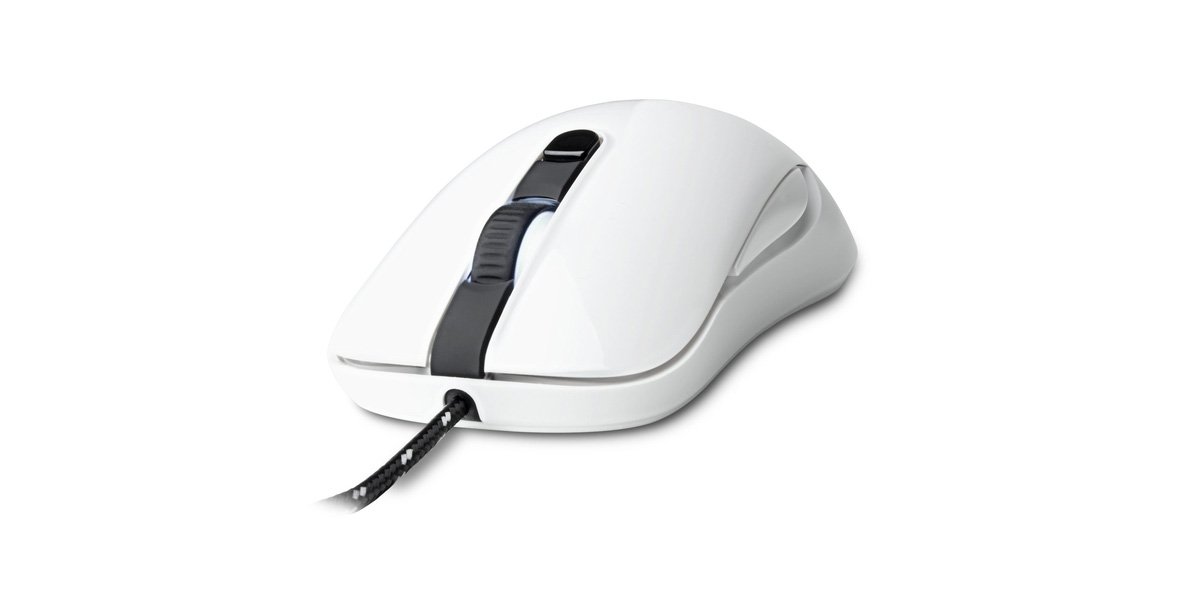
Image of the SteelSeries Kana Optical Gaming Mouse in white, showcasing its ambidextrous design, illuminated scroll wheel, and side buttons.
4. סעטאַפּ
4.1 האַרדוואַרע קאַנעקשאַן
- געפֿינען אַן בנימצא וסב פּאָרט אויף דיין קאָמפּיוטער.
- Plug the USB connector of the SteelSeries Kana mouse into the USB port.
- Your operating system should automatically detect and install basic drivers for the mouse.
4.2 Software Installation (SteelSeries Engine)
To unlock the full customization potential of your SteelSeries Kana mouse, including CPI settings, button programming, macros, and LED intensity, install the SteelSeries Engine software.
- Visit the official SteelSeries webפּלאַץ: steelseries.com/engine
- Download the SteelSeries Engine software compatible with your operating system (Windows or macOS).
- גיי די ינסטראַקשאַנז אויף דעם עקראַן צו פאַרענדיקן די ינסטאַלירונג.
- Once installed, launch the SteelSeries Engine to configure your mouse settings.
נאטיץ פאר מעק באניצער: Compatibility with macOS versions 10.9 and later for SteelSeries Engine 2.0 (required for Kana) has historically been inconsistent. Please check the official SteelSeries website for the latest software updates and compatibility information before installation.
5. אַפּערייטינג ינסטרוקטיאָנס
5.1 יקערדיק פאַנגקשאַנאַליטי
- באַוועגונג: באַוועגט די מויז איבער אַן ייבערפלאַך צו קאָנטראָלירן דעם קורסאָר אויף אייער עקראַן.
- קליקינג: Use the left and right buttons for primary and secondary actions.
- סקראָללינג: Rotate the scroll wheel to navigate documents and web pages. Press the scroll wheel for its assigned middle-click function.
5.2 Adjusting CPI (Counts Per Inch)
The centrally located CPI toggle button allows you to switch between two pre-defined sensitivity settings instantly. The default CPI settings are optimized for gaming, but can be customized using the SteelSeries Engine software. The maximum CPI supported is 3200.
- Press the CPI toggle button once to switch to the alternate CPI setting.
- Press it again to revert to the previous setting.
5.3 Customizing with SteelSeries Engine
The SteelSeries Engine software provides extensive customization options:
- CPI Settings: Fine-tune or set custom CPI values beyond the pre-defined options.
- קנעפּל פּראָגראַממינג: Assign custom functions, keyboard shortcuts, or macros to any of the 6 programmable buttons (including side buttons and scroll wheel click).
- מאַקראָס: Create and assign complex sequences of commands with precise timing control.
- לעד אינטענסיטעט: Adjust the brightness of the illuminated scroll wheel.
- פּראָfiles: שאַפֿן און ראַטעווען קייפל פּראָfiles for different games or applications, with automatic switching based on game triggers.
6. וישאַלט
6.1 רייניקן דיין מויז
To ensure optimal performance and longevity, keep your mouse clean.
- עקסטעריע: ניצן אַ ווייך, לינט-פֿרייַ שטאָף אַ ביסל דampאָפּגעווישט מיט וואַסער אָדער אַ מילדער רייניקונג לייזונג צו ווישן די ייבערפלאַך פון דער מויז. פֿאַרמייַדן שטרענגע כעמיקאַלן אָדער אַברייסיוו מאַטעריאַלס.
- אָפּטיש סענסאָר: Gently clean the optical sensor lens on the underside of the mouse with a dry cotton swab or compressed air to remove dust or debris.
- מויז פֿיס: Ensure the mouse feet are clean and free of obstructions for smooth gliding.
וואָרענען: Do not immerse the mouse in water or any cleaning solution. Avoid spraying liquids directly onto the mouse.
7. טראָובלעשאָאָטינג
| פּראָבלעם | מעגלעך לייזונג |
|---|---|
| Mouse not detected / Not responding |
|
| Inaccurate or erratic tracking |
|
| Buttons not responding or performing incorrectly |
|
| SteelSeries Engine software not recognizing mouse (Mac OS) |
|
8. ספּעסאַפאַקיישאַנז
| סאָרט | SteelSeries |
| מאָדעל נומער | 62029 |
| קאָליר | ווייַס |
| באַוועגונג דעטעקשאַן טעכנאָלאָגיע | אָפּטיש |
| נומער פון קנעפּלעך | 6 (פּראָגראַמירבאר) |
| האַנט אָריענטירונג | Ambidextrous (Left, Right) |
| ייַזנוואַרג פּלאַטפאָרמע | PC |
| טיפּ קאַבלע | געפלאָכטענע ניילאָן |
| פּונקט וואָג | 0.16 קילאָגראַמס |
| ספּעציעלע שטריך | Ergonomic Design, Illuminated Scroll Wheel |
9. וואָראַנטי און שטיצן
9.1 וואָראַנטי אינפֿאָרמאַציע
The SteelSeries Kana Optical Gaming Mouse comes with a 1-יאָר לימיטעד וואָראַנטי פֿון דעם קויפֿדאַטום. די וואָראַנטי דעקט פֿאַבריקאַציע חסרונות און אַרבעט אונטער נאָרמאַל נוצן. עס דעקט נישט שעדיקן געפֿירט דורך אומרעכט נוצן, אַקסאַדענטן, נישט-אָטעריזירטע מאָדיפֿיקאַציעס, אָדער נאָרמאַל טראָגן און טרער. ביטע האַלטן דיין קויפֿבאַווייַז פֿאַר וואָראַנטי קליימז.
9.2 קונה שטיצן
For technical assistance, warranty claims, or further information, please visit the official SteelSeries support webפּלאַץ:
You can find FAQs, driver downloads, and contact information for customer service on their webפּלאַץ.