
1. הקדמה
The D-Link Wireless N300 Dual Band PCI Express Desktop Adapter (DWA-566) provides high-speed wireless connectivity for your desktop computer. Utilizing Wireless N technology, it maximizes the speed and range of your wireless signal, offering superior performance compared to Wireless G devices. The dual-band capability supports both 2.4GHz and 5GHz wireless signals, allowing for flexible network usage, such as browsing on 2.4GHz and HD streaming or gaming on the clearer 5GHz band.
This adapter is designed to fit into any standard PCI Express slot, offering a higher performance interface than legacy PCI. It supports secure wireless networks with WPA or WPA2 encryption.

Figure 1.1: D-Link DWA-566 Wireless N300 Dual Band PCI Express Desktop Adapter with antennas.
2. פֿעיִקייטן
The DWA-566 adapter includes the following key features:
- IEEE 802.11n, 802.11g, and 802.11a Compliant
- Dual Band Technology for Superior Wireless Performance (2.4GHz or 5GHz)
- Access secure wireless networks using advanced WPA or WPA2 encryption
- Fits into any standard PCI Express slot
- PCI Express Interface provides higher performance than a legacy PCI interface
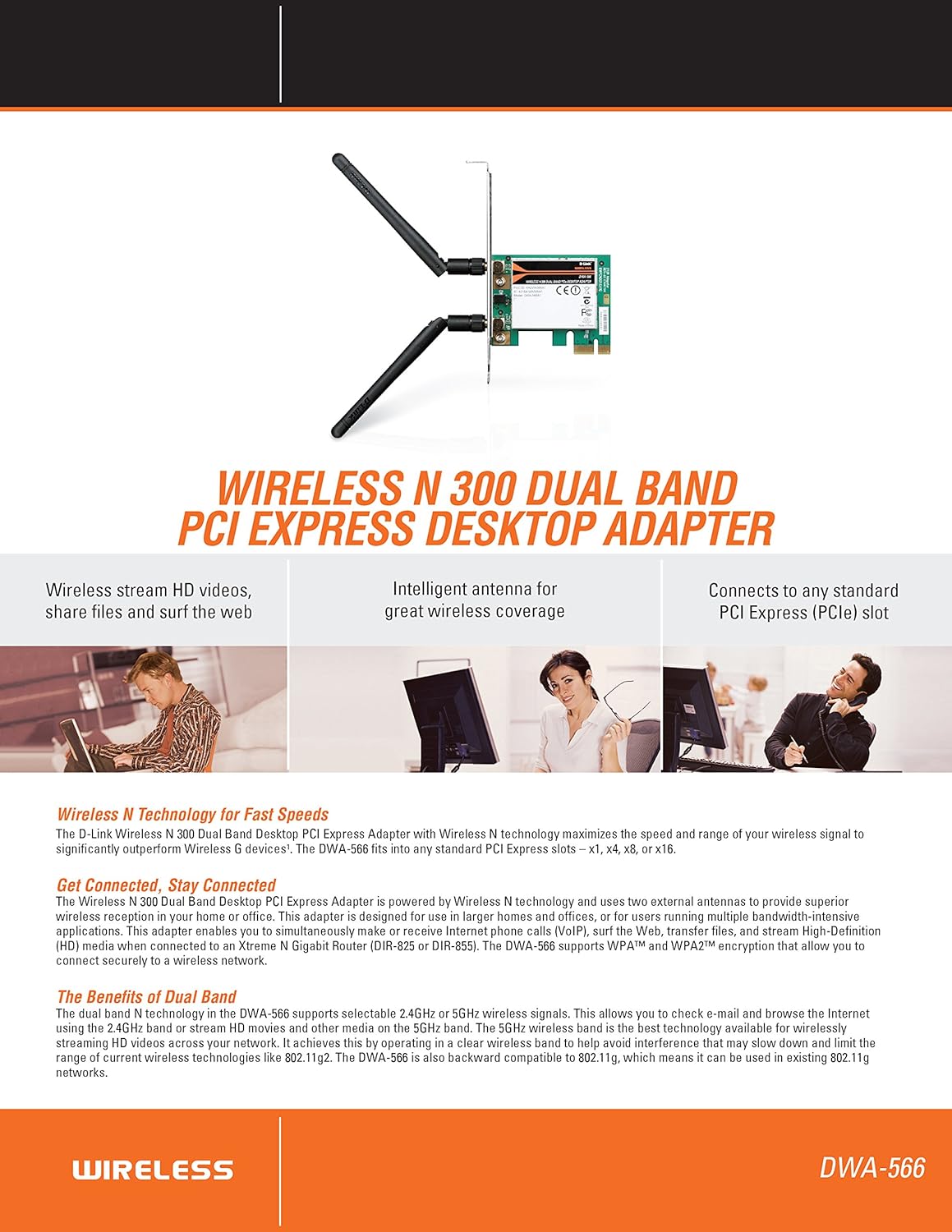
פיגורע 2.1: איבערview of DWA-566 features and benefits.
3. פּעקל אינהאַלט
באַשטעטיקן אַז דיין פּעקל כּולל די פאלגענדע זאכן:
- Wireless N 300 Dual Band PCI Express Adapter (DWA-566)
- צוויי אָפּנעמבאַרע אַנטענעס
- נידעריק-פּראָfile מאַונטינג קלאַמער
- שנעל ינסטאַלל גייד
- CD-ROM with:
- ד-לינק ווירעלעסס קאַנעקשאַן מאַנאַגער
- דריווערס
- פּראָדוקט דאָקומענטאַטיאָן
4. סיסטעם רעקווירעמענץ
Before installing the DWA-566, ensure your system meets the following minimum requirements:
- Computer with an available PCI Express slot
- Windows operating system (Windows XP, Vista, 7, 8, 10)
- CD-ROM drive (for driver installation from included CD)
- Internet Explorer 7 or Firefox 3.0 and above (for viewing documentation)
- אַבאָנעמענט מיט אַן אינטערנעט סערוויס פּראַוויידער (יספּ)
For optimal performance, a D-Link Wireless N router (DIR-655 or DIR-825) is recommended.

Figure 4.1: Detailed technical specifications, minimum requirements, and network diagram.
5. סעטאַפּ און ייַנמאָנטירונג
5.1 ייַזנוואַרג ינסטאַלירונג
- Power Off Computer: קער אַוועק דיין קאָמפּיוטער און אָפּשטעקן די מאַכט שנור.
- עפֿענען קאָמפּיוטער קעסטל: Remove the computer case cover.
- געפינען די PCI Express סלאָט: Find an available PCI Express slot on your motherboard.
- אַרײַנשטעלן אַדאַפּטער: Carefully insert the DWA-566 adapter into the PCI Express slot, ensuring it is seated firmly.
- זיכער אַדאַפּטער: Secure the adapter with a screw to the computer chassis.
- צוטשעפּען אַנטענע: Screw the two included antennas onto the connectors on the adapter.
- פֿאַרמאַכן דעם קעסטל און אָנצינדן: Replace the computer case cover, plug in the power cord, and power on your computer.

Figure 5.1: DWA-566 adapter with antennas attached, ready for installation.
5.2 ווייכווארג ינסטאַלירונג
After hardware installation, proceed with driver and utility installation:
- אַריינשטעלן אינסטאַלאַציע סי-די: Insert the DWA-566 installation CD into your computer's CD-ROM drive. The setup wizard should launch automatically. If not, navigate to the CD drive and run the 'Setup.exe' file.
- גיי די אינסטרוקציעס אויף דער סקרין: Follow the prompts of the D-Link setup wizard to install the drivers and the D-Link Wireless Connection Manager utility.
- ריסטאַרט קאָמפּיוטער: After the installation is complete, restart your computer when prompted.
באַמערקונג: For Windows 7/8 64-bit systems, ensure you are using the latest drivers available from the official D-Link support website to avoid potential compatibility issues.
6. אַפּערייטינג ינסטרוקטיאָנס
Once the drivers are installed, you can connect to a wireless network:
- Launch Connection Manager: Open the D-Link Wireless Connection Manager utility or use the built-in Windows wireless network utility.
- סקען פֿאַר נעטוואָרקס: The utility will scan for available wireless networks in your area.
- אויסקלייַבן נעץ: Choose your desired wireless network (SSID) from the list.
- Enter Security Key: If the network is secured, enter the correct WPA/WPA2 security key or passphrase.
- פאַרבינדן: Click 'Connect' to establish a wireless connection.
A successful connection will be indicated by a strong signal strength and internet access.
7. וישאַלט
צו זיכער מאַכן אָפּטימאַלע פאָרשטעלונג און לאַנגלעבעדיקייט פון דיין DWA-566 אַדאַפּטער:
- האַלטן דריווערס דערהייַנטיקט: טשעקט פּעריִאָדיש די ד-לינק שטיצע website for the latest drivers and firmware updates.
- פאַרזיכערן געהעריק ווענטאַליישאַן: Make sure your computer case has adequate airflow to prevent overheating of internal components, including the wireless adapter.
- אַנטענע שטעלע: Adjust the antennas for the best possible signal reception.
- ענוויראָנמענטאַל סיבות: Avoid placing your computer near large metal objects or other devices that may cause wireless interference.
8. טראָובלעשאָאָטינג
אויב איר טרעפט פּראָבלעמען מיט אייער DWA-566 אַדאַפּטער, באַטראַכט די פאלגענדע:
8.1 No Wireless Connection
- Verify Hardware Installation: Ensure the adapter is correctly seated in the PCI Express slot and antennas are securely attached.
- Check Drivers: Confirm that the drivers are installed correctly. Check Device Manager for any error symbols next to the network adapter. Reinstall drivers if necessary.
- ראַוטער סטאַטוס: Ensure your wireless router is powered on and broadcasting a signal.
- זיכערהייט שליסל: Double-check that the correct wireless security key (WPA/WPA2 passphrase) is entered.
- פיירוואַל סעטטינגס: Temporarily disable your computer's firewall to see if it is blocking the connection. If it resolves the issue, configure your firewall to allow the D-Link utility.
8.2 Slow Connection Speed or Frequent Disconnections
- אַנטענע אַדזשאַסטמענט: Try repositioning the antennas for better signal reception.
- ינטערפיראַנס: Move the computer away from potential sources of interference (e.g., cordless phones, microwaves, Bluetooth devices).
- ראַוטער נאָענטקייט: Ensure the computer is within the effective range of your wireless router.
- צווייענדיק באַנד באַניץ: If your router supports it, try connecting to the 5GHz band for less interference and potentially higher speeds, especially for streaming or gaming.
- דרייווער דערהייַנטיקן: Update the adapter drivers to the latest version from the D-Link webפּלאַץ.
9. ספּעסאַפאַקיישאַנז
| שטריך | באַשרייַבונג |
|---|---|
| סאָרט | ד-לינק |
| מאָדעל נומער | דוואַ-566 |
| ייַזנוואַרג צובינד | PCI Express |
| דאַטאַ לינק פּראָטאָקאָל | IEEE 802.11n, 802.11g, 802.11a |
| דאַטאַ אַריבערפירן קורס | ביז 300 מעגאַביטן פּער סעקונדע |
| אָפטקייַט באַנד | 2.4 GHz / 5 GHz (Dual Band) |
| זיכערהייַט | WPA, WPA2 |
| קאַמפּאַטאַבאַל דעוויסעס | דעסקטאָפּ קאָמפּיוטערס |
| פּונקט וואָג | 0.4 פונט (בעערעך 181 גראַמז) |
| עקסטערנע טעסטינג סערטיפיקאַציע | FCC B, IC B, CE, C-Tick |
10. וואָראַנטי און שטיצן
The D-Link Wireless N300 Dual Band PCI Express Desktop Adapter (DWA-566) comes with a 1-יאָר לימיטעד וואָראַנטי. For specific terms and conditions, please refer to the warranty documentation included with your product or visit the official D-Link webפּלאַץ.
D-Link provides 24/7 Basic Installation Support to assist with initial setup and configuration. For technical assistance, driver downloads, and further product information, please visit the D-Link support webפּלאַץ אָדער קאָנטאַקט זייער קונה דינסט.
ד-לינק שטיצן Webפּלאַץ: https://support.dlink.com/