
טשערעפּאַכע ביטש טבס-4130-04
Turtle Beach Ear Force Foxtrot MW3 Gaming Headset Instruction Manual
Model: TBS-4130-04
1. הקדמה
This manual provides comprehensive instructions for the Turtle Beach Call of Duty: MW3 Ear Force Foxtrot Limited Edition Universal Amplified Stereo Gaming Headset. This headset is designed to enhance your gaming audio experience across multiple platforms, including Xbox 360, PlayStation 3, PC, and Mac. It features amplified stereo sound, an in-line amplifier for audio control, and a microphone for clear communication.

Image 1.1: The Turtle Beach Ear Force Foxtrot MW3 Gaming Headset, showing the over-ear design and flexible microphone.
2. סעטאַפּ אינסטרוקציעס
Follow these steps to connect your Ear Force Foxtrot headset to your gaming system.
2.1 קאַמפּאָונאַנץ
מאַכן זיכער אַז איר האָבן די פאלגענדע קאַמפּאָונאַנץ:
- Turtle Beach Ear Force Foxtrot Headset with attached in-line amplifier and cables.
- USB port for power (available on consoles and PCs).
- Audio output (RCA stereo or 3.5mm headphone jack, depending on platform).
2.2 Connecting to Xbox 360
- Connect the green 3.5mm plug from the headset to the green audio output on your TV or audio receiver. If your TV does not have a 3.5mm output, use the included RCA splitter cable to connect to the red and white RCA audio outputs.
- Connect the USB plug from the headset to an available USB port on your Xbox 360 console for power.
- Connect the 2.5mm chat cable from the in-line amplifier to the controller's chat port.
- Power on your Xbox 360 and adjust audio settings as needed.
2.3 פֿאַרבינדן זיך צו פּלייסטיישאַן 3
- Connect the green 3.5mm plug from the headset to the green audio output on your TV or audio receiver. If your TV does not have a 3.5mm output, use the included RCA splitter cable to connect to the red and white RCA audio outputs.
- Connect the USB plug from the headset to an available USB port on your PlayStation 3 console for power and chat audio.
- אויף אייער PS3, גיי צו סעטטינגס > אַקסעסערי סעטטינגס > אַודיאָ דיווייס סעטטינגס.
- אויסקלייַבן "USB Headset" or similar for both Input and Output Devices.
- Adjust the microphone level as necessary.
2.4 Connecting to PC/Mac
- Connect the USB plug from the headset to an available USB port on your PC or Mac for power and microphone functionality.
- Connect the green 3.5mm plug from the headset to your computer's headphone output jack.
- Adjust your computer's sound settings to select the headset as the default playback and recording device.
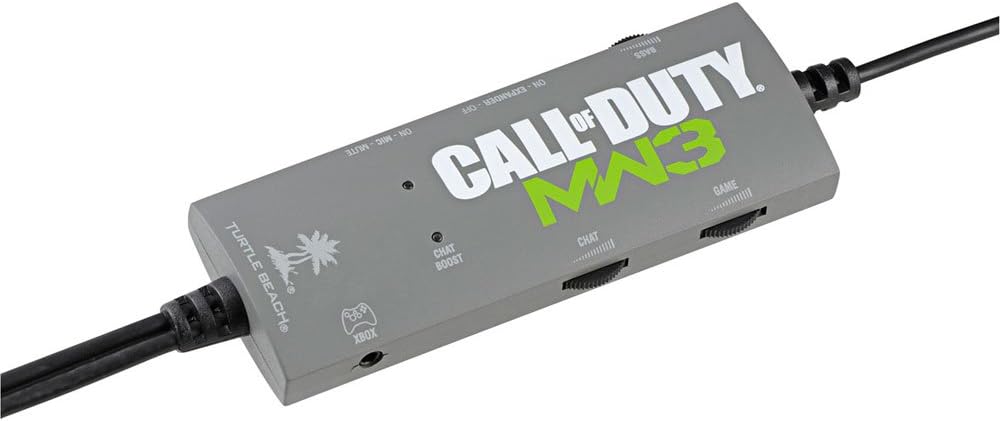
Image 2.1: The in-line amplifier for the Ear Force Foxtrot headset, featuring controls for game volume, chat volume, bass boost, and stereo expander.
3. אַפּערייטינג ינסטרוקטיאָנס
The Ear Force Foxtrot headset features an in-line amplifier for convenient control over your audio experience.
3.1 In-line Ampליבערי קאָנטראָלס
- Game Volume Dial: Adjusts the overall game audio level.
- Chat Volume Dial: Controls the volume of incoming chat audio.
- Bass Boost Switch: Activates or deactivates the variable bass boost feature, adding depth to game audio.
- Stereo Expander Switch: Widens the sound field for enhanced directional perception.
- מיקראָפאָן מוט סוויטש: טאָגלעס די מיקראָפאָן אויף אָדער אַוועק.
- Microphone Monitor: Allows you to hear your own voice in the headset, preventing shouting. This feature is always active when the microphone is unmuted.
- Chat Boost: Automatically increases chat volume when game audio becomes louder, ensuring clear communication during intense gameplay.
3.2 Adjusting for Optimal Sound
Experiment with the Bass Boost and Stereo Expander settings to find your preferred audio profile for different games. Adjust game and chat volumes to balance them for clear communication without overpowering game sounds.
4. וישאַלט
געהעריגע זאָרג וועט פֿאַרלענגערן דאָס לעבן פֿון אײַער כעדסעט.
- רייניקונג: Use a soft, dry cloth to clean the headset and in-line ampניצט נישט קיין פליסיקע רייניגער אדער שברייענדע מאַטעריאַלן.
- סטאָרידזש: Store the headset in a cool, dry place away from direct sunlight and extreme temperatures. Avoid wrapping the cable tightly to prevent damage.
- קאַבלע זאָרגן: The headset features a long, wired cable. Handle it carefully to prevent tangling, kinking, or fraying, which can lead to internal wire damage.
- Earcup Pads: Periodically check earcup pads for wear and tear. Replacement pads may be available from the manufacturer.

בילד 4.1: נאָענט־אַרויף view of the headset's headband and earcups, highlighting the cushioning and construction.
5. טראָובלעשאָאָטינג
If you encounter issues with your headset, refer to the following common problems and solutions.
5.1 No Game Audio
- Ensure all audio connections (3.5mm or RCA) are securely plugged into the correct ports on your TV/receiver/PC.
- Verify the USB cable is connected to a powered USB port.
- Check the Game Volume dial on the in-line amplifier and ensure it is not set to minimum.
- Confirm your console/PC audio output settings are correctly configured to send game audio to the headset.
5.2 Microphone Not Working / Others Cannot Hear Me
- Ensure the Microphone Mute switch on the in-line amplifier is in the "unmuted" position.
- For Xbox 360, ensure the 2.5mm chat cable is securely connected to your controller.
- For PS3/PC/Mac, verify that the headset is selected as the default recording/input device in your system's audio settings.
- Adjust microphone levels in your console/PC settings.
- Check for any physical damage to the microphone boom.
5.3 Low Volume Hum or Static
- פאַרזיכערן אַז אַלע קאַנעקשאַנז זענען זיכער און פריי פון ינטערפיראַנס.
- Try connecting the USB power cable to a different USB port.
- If using the Stereo Expander, note that a slight hum may be more noticeable in quiet environments. This is normal for some amplified headsets.
- Reduce the overall game volume if the hum is only present at very high volumes.
5.4 Headset Discomfort
- סטרויערן די כעדבאַנד פֿאַר אַ באַקוועם פּאַסיק.
- Take breaks during extended gaming sessions.
- זיכער מאַכן אַז די אויערקאַפּס זענען ריכטיק פּאַזיציאָנירט איבער אייערע אויערן.
6. ספּעסאַפאַקיישאַנז
| מאָדעל נאָמען | Ear Force Foxtrot (TBS-4130-04) |
| קאַנעקטיוויטי טעכנאָלאָגיע | ווייערד |
| קאַמפּאַטאַבאַל דעוויסעס | Xbox 360, PlayStation 3, PC, Mac |
| קאָנטראָל טיפּ | Volume Control (In-line ampלייבער) |
| ספּעציעלע פֿעיִקייטן | Microphone Included, Amplified Audio, Variable Bass Boost, Stereo Expander, Microphone Monitor, Chat Boost |
| אויער פּלייסמאַנט | איבער-אויער |
| כעדפאָונז דזשאַק | USB (for power/chat) and 3.5mm (for game audio) |
| פּראָדוקט דימענשאַנז | 8.46 X 8.66 X 3.86 אינטשעס |
| פּונקט וואָג | 0.01 אונס (בעערעך 0.28 גראַמז) |
| פאַבריקאַנט | טורטלע ביטש |
| UPC | 731855041305 |
7. וואָראַנטי און שטיצן
For detailed warranty information and technical support, please visit the official Turtle Beach webזייטל אדער קאנטאקט זייער קאסטומער סערוויס גלייך. האלט אייער באווייז פון קויפן פאר גאראנטיע פארלאנגען.
Official Turtle Beach Webפּלאַץ: www.turtlebeach.com
Ask a question about this manual
Ask about setup, troubleshooting, compatibility, parts, safety, or missing instructions. Manuals+ will review the question and use this page’s manual context to help answer it.