
1. איבערview
The Memorex MVD2047 Progressive Scan DVD Player is a versatile multimedia device designed for home entertainment. It supports playback of various disc formats including DVD, CD, MP3 CD, and picture CDs. Featuring Dolby Digital output and an intuitive on-screen graphical user interface, this player offers essential functions such as zoom and multi-angle menu options for an enhanced viewינג דערפאַרונג.
שליסל פֿעיִקייטן
- DVD, DVD+R/+RW, DVD-R/-RW, audio CD, CD-R/RW, MP3 CD, and picture CD playback
- Dolby Digital output and On-Screen graphical user interface
- Zoom function and VFD display
- Full function remote control and audio/video cables included
- 16:9/4:3 picture select for aspect ratio adjustment
- HDMI upconverting for high-definition viewing up to 1080p
- Progressive scan capability for smooth, flicker-free images
- Parental lock function for content control
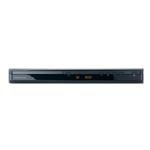
פיגורע 1: פראָנט view of the Memorex MVD2047 Progressive Scan DVD Player. This image displays the sleek, black design of the DVD player, highlighting its compact form factor and front panel controls.
2. סעטאַפּ גייד
ונפּאַקקינג
Before setting up your DVD player, ensure all components are present and undamaged. The package should include:
- Memorex MVD2047 DVD Player unit
- Full-function remote control (batteries sold separately)
- Audio/Video cables (RCA type)
Connecting Your DVD Player
Proper connection is crucial for optimal performance. Ensure your television and DVD player are turned off before making any connections.
ווידעא קאַנעקשאַנז
- HDMI רעזולטאַט: For the highest quality digital video and audio, connect an HDMI cable (not included) from the DVD player's HDMI OUT port to an HDMI IN port on your TV. This connection supports upconverting to 1080p.
- קאָמפּאָנענט ווידעאָ אַרויסגאַנג (YPbPr): For high-quality analog video, connect component video cables (red, green, blue) from the DVD player's COMPONENT VIDEO OUT ports to the corresponding COMPONENT VIDEO IN ports on your TV.
- S-ווידעא אויסגאַנג: Connect an S-Video cable (not included) from the DVD player's S-VIDEO OUT port to the S-VIDEO IN port on your TV. S-Video provides better quality than composite video.
- קאָמפּאָסיטע ווידעא רעזולטאַט: Connect the yellow RCA video cable from the DVD player's VIDEO OUT port to the VIDEO IN port on your TV. This is a standard analog video connection.
אַודיאָ קאַנעקשאַנז
- HDMI אַודיאָ: If using an HDMI connection, audio is transmitted digitally through the same cable.
- אנאַלאָג אַודיאָ אַרויסגאַנג (RCA): Connect the red and white RCA audio cables from the DVD player's AUDIO OUT (L/R) ports to the corresponding AUDIO IN (L/R) ports on your TV or audio receiver.
- Dolby Digital Output: The player supports Dolby Digital output for surround sound systems. Connect the appropriate digital audio cable (coaxial or optical, not included) to your compatible audio receiver.
3. אַפּערייטינג ינסטרוקטיאָנס
יקערדיק פּלייַבאַקק
- מאַכט אויף: Press the POWER button on the front panel or remote control to turn on the DVD player.
- אַרייַנלייגן דיסק: Press the OPEN/CLOSE button to open the disc tray. Place a DVD, CD, or compatible disc onto the tray with the label side facing up. Press OPEN/CLOSE again to close the tray.
- פּלייבאַק: The player will typically begin playback automatically. If not, select the PLAY button on the remote control.
- Stop/Pause: Use the STOP or PAUSE buttons on the remote to control playback.
- אַרויסוואַרפן דיסק: Press the OPEN/CLOSE button to eject the disc.
אַוואַנסירטע פֿעיִקייטן
- פארגרעסער פֿונקציע: Use the ZOOM button on the remote to magnify a portion of the screen during playback.
- Multi-Angle Menu: For discs that support multiple camera angles, use the ANGLE button to switch between available views.
- סלאָו מאָטיאָן: During playback, press the SLOW button to play video at 1/2, 1/4, or 1/8 speed.
- Fast-Forward/Rewind: Use the FF (Fast-Forward) and REW (Rewind) buttons to navigate through content at x2, x4, or x8 speed.
- אַספּעקט פאַרהעלטעניש: Adjust the display aspect ratio between 16:9 (widescreen) and 4:3 (standard) using the ASPECT button on the remote or through the on-screen menu.
פּאַרענטאַל קאָנטראָלס
The Memorex MVD2047 includes a parental lock function to restrict access to certain content. This feature allows you to set a rating level, preventing playback of discs above that level without a password. Refer to the on-screen graphical user interface for setting up and managing parental controls.
4. וישאַלט
To ensure the longevity and optimal performance of your Memorex MVD2047 DVD player, follow these simple maintenance guidelines:
- רייניקונג די אַפּאַראַט: Use a soft, dry cloth to wipe the exterior of the DVD player. Do not use liquid cleaners or aerosol sprays, as they may damage the finish or internal components.
- דיסק באַהאַנדלונג: Handle discs by their edges to avoid fingerprints and scratches. Store discs in their cases when not in use. Clean dirty discs with a soft, lint-free cloth, wiping from the center outwards.
- ווענטילאַטיאָן: Ensure the DVD player is placed in a well-ventilated area. Do not block the ventilation openings on the unit, as this can lead to overheating.
- מאַכט אַוועק ווען ניט אין נוצן: For extended periods of inactivity, it is recommended to power off the unit and unplug it from the power outlet.
5. טראָובלעשאָאָטינג
If you encounter issues with your Memorex MVD2047 DVD player, consult the table below for common problems and their solutions.
| פּראָבלעם | מעגלעך סיבה | לייזונג |
|---|---|---|
| קיין מאַכט | עלעקטרישע שנור נישט זיכער פארבונדן. | Ensure the power cord is firmly plugged into the wall outlet and the player. |
| קיין בילד | Incorrect video connection or input selection on TV. | Check video cables (HDMI, Component, S-Video, Composite) are securely connected. Select the correct input source on your TV (e.g., HDMI 1, AV, Component). |
| No sound (especially via HDMI) | Incorrect audio connection; TV or receiver volume too low; HDMI audio setting issue. | Verify audio cables (RCA, digital) are connected correctly. Increase volume on TV/receiver. If using HDMI, ensure your TV/receiver supports HDMI audio and check the player's audio output settings. Try a different HDMI cable or port. |
| דיסק טאַץ עפֿנט זיך נישט/שליסט זיך נישט | Obstruction in tray; mechanical issue. | Check for any foreign objects blocking the tray. Power cycle the unit (unplug, wait 30 seconds, plug back in). If the problem persists, service may be required. |
| די דיסק שפּילט נישט | די דיסק איז שמוציק, קראַצט, אדער נישט קאָמפּאַטיבל אין אַ פֿאָרמאַט. | Clean the disc with a soft cloth. Try a different disc. Ensure the disc format (DVD, CD, MP3 CD, Picture CD) is supported by the player. |
| ווייַט קאָנטראָל נישט ארבעטן | באַטעריעס זענען טויט אָדער נישט ריכטיק אַרײַנגעשטעלט; אַ פֿאַרשטאָפּונג צווישן דער ווײַטקאָנטראָל און דעם שפּילער. | Replace batteries with new ones, ensuring correct polarity. Remove any obstacles between the remote and the player's front panel sensor. |
6. טעכניש ספּעסאַפאַקיישאַנז
| שטריך | באַשרייַבונג |
|---|---|
| מאָדעל נומער | MVD2047 (Internal: 01233) |
| שטיצט מעדיע טייפּס | DVD, DVD+R/+RW, DVD-R/-RW, Audio CD, CD-R/RW, MP3 CD, Picture CD |
| ווידעא רעזולטאַט | HDMI, Component Video (YPbPr), S-Video, Composite Video |
| אַודיאָ רעזולטאַט | HDMI Audio, Analog Stereo (RCA L/R), Dolby Digital Output |
| Resolution (HDMI Upconverting) | Up to 1080p (1920x1080) |
| אַספּעקט ראַטיאָס | 16:9, 4:3 |
| ספּעציעלע פֿעיִקייטן | Progressive Scan, Zoom Function, Multi-Angle Menu, Parental Control |
| ווייַז | געפירט אַרויסווייַזן |
| פּונקט וואָג | 8 אונס (בעערעך 227 גראַמז) |
| פּעקל דימענשאַנז | 16.5 x 10 x 3.5 אינטשעס (אומגעפער 41.9 x 25.4 x 8.9 ס״מ) |
7. וואָראַנטי און שטיצן
For information regarding product warranty, technical support, or service, please refer to the documentation included with your purchase or visit the official Imation (Memorex) support webזייטל. האַלט דיין קויפן באַווייַז פֿאַר וואָראַנטי קליימז.