
1. הקדמה
Thank you for choosing the M-Audio Radium 49 MIDI Controller Keyboard. This manual provides essential information for setting up, operating, and maintaining your device. The Radium 49 is a versatile 49-key MIDI controller designed to integrate seamlessly with your digital audio workstation (DAW) and other MIDI-compatible software and hardware.
It features 49 velocity-sensitive keys and 8 assignable controller knobs, offering expressive control over your musical productions.
2. זיכערקייַט אינפֿאָרמאַציע
- מאַכט מקור: Connect the device only to the power source specified in the product documentation or marked on the product.
- וואַסער און נעץ: Do not expose this device to rain or moisture. Do not use near water or in damp לאָוקיישאַנז.
- היץ: Do not place the device near heat sources such as radiators, heat registers, stoves, or other heat-producing appliances.
- ווענטילאַטיאָן: זיכער מאַכן אַז עס איז דאָ געהעריקע ווענטילאַציע. נישט פֿאַרשטאָפּן קיין ווענטילאַציע עפענונגען.
- רייניקונג: Clean only with a dry cloth. Avoid liquid cleaners.
- סערוויס: דו זאלסט נישט פּרווון צו דינען דעם פּראָדוקט זיך. קאָנטאַקט אַלע קוואַלאַפייד סערוויס פּערסאַנעל.
3. פּעקל אינהאַלט
ביטע קאָנטראָלירט אַז אַלע די פאלגענדע זאכן זענען אַרייַנגערעכנט אין דיין פּעקל:
- M-Audio Radium 49 MIDI Controller Keyboard
- וסב קאַבלע
- באַניצער מאַנואַל (דעם דאָקומענט)
4. פּראָדוקט איבערview
The M-Audio Radium 49 features a streamlined design with essential controls for MIDI performance and production.
4.1 פראָנט פּאַנעל
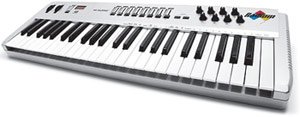
בילד 1: פראָנט view of the M-Audio Radium 49 MIDI Controller Keyboard. This image displays the 49 keys, 8 rotary knobs, and various buttons for control and navigation.
- 49 Velocity-Sensitive Keys: Standard piano-style keys for playing notes and controlling MIDI instruments.
- 8 Assignable Controller Knobs: Rotary knobs that can be assigned to control various parameters in your software or hardware, such as volume, pan, filter cutoff, or effects.
- פּעך בענד ראָד: Allows for real-time pitch modulation.
- מאָדולאַטיאָן ראָד: Provides real-time control over various parameters, commonly vibrato or tremolo.
- Octave Transpose Buttons: Buttons to shift the keyboard's octave range up or down by up to three octaves.
4.2 דערציען פּאַנעל
The rear panel typically houses the connectivity ports.
- וסב פּאָרט: For connecting the Radium 49 to your computer, providing both power and MIDI data transmission.
- MIDI אויסגאַנג פּאָרט: Allows connection to external MIDI hardware.
- ונטערהאַלטן פּעדאַל ינפּוט: פֿאַר פֿאַרבינדן אַן אָפּציאָנעלן סאַסטיין פּעדאַל.
5. סעטאַפּ
5.1 פֿאַרבינדן זיך צו דיין קאָמפּיוטער
- מאַכט זיכער אַז דיין קאָמפּיוטער איז ענייבאַלד.
- Connect one end of the supplied USB cable to the USB port on the M-Audio Radium 49.
- Connect the other end of the USB cable to an available USB port on your computer. The Radium 49 will draw power directly from the USB connection.
- Your computer should detect the new hardware.
5.2 דרייווער ינסטאַלירונג
For optimal performance, it is recommended to install the latest drivers for the M-Audio Radium 49. While many modern operating systems may offer class-compliant drivers, dedicated drivers often provide enhanced stability and features.
- Visit the official M-Audio webפּלאַץ (www.m-audio.com) און נאַוויגירן צו די שטיצן אָדער דאַונלאָודז אָפּטיילונג.
- Locate the drivers for the Radium 49 (Model: 9900-40825-00).
- Download the appropriate driver for your operating system (e.g., Windows, macOS). Note: This product is considered a legacy device. Compatibility with newer operating systems like Windows 7 and above may require specific drivers or may be limited. Refer to M-Audio's support resources for detailed compatibility information.
- פֿאָלגט די אינסטרוקציעס אויף דעם עקראַן צו אינסטאַלירן דעם דרייווער. איר זאָלט אפשר ריסטאַרטן אייער קאָמפּיוטער נאָך דער אינסטאַלאַציע.
5.3 ווייכווארג קאָנפיגוראַטיאָן
After driver installation, configure your Digital Audio Workstation (DAW) or other music software to recognize the Radium 49 as a MIDI input device.
- Open your preferred DAW (e.g., Ableton Live).
- Navigate to the software's preferences or settings menu (often found under "Options," "Preferences," or the software's name).
- Look for a section related to MIDI devices, controllers, or external devices.
- Enable the M-Audio Radium 49 as a MIDI input. You may see it listed by its name or as a generic USB MIDI device.
- Consult your DAW's documentation for specific instructions on setting up MIDI controllers.
6. אַפּערייטינג ינסטרוקטיאָנס
6.1 Playing Notes
Once connected and configured, simply press the keys on the Radium 49 to send MIDI note data to your software instruments. The velocity sensitivity of the keys will translate into dynamic variations in your sound.
6.2 Using Controller Knobs
The 8 assignable controller knobs can be mapped to various parameters within your DAW or software instruments. This allows for real-time control over sound characteristics.
- אויפגאבע: The method for assigning knobs varies by software. Typically, you will enter a "MIDI Learn" mode in your DAW, select the parameter you wish to control, and then turn the desired knob on the Radium 49.
- פּראָסט ניצט: Control volume, pan, filter cutoff, resonance, effect send levels, or any other MIDI-mappable parameter.
6.3 פּיטש בענד און מאָדולאַציע רעדער
- פּעך בענד ראָד: Move this wheel up or down to temporarily raise or lower the pitch of the notes being played. It typically springs back to the center position.
- מאָדולאַטיאָן ראָד: Move this wheel to add modulation effects, suchs as vibrato, tremolo, or filter sweeps, depending on how your software instrument is configured. This wheel usually stays in its last set position.
6.4 Octave Transposition
Use the dedicated Octave Transpose buttons to shift the entire keyboard's range up or down. This allows you to access a wider range of notes than the 49 physical keys provide.
- Press the "Octave Up" button to shift the keyboard's range higher.
- Press the "Octave Down" button to shift the keyboard's range lower.
- The Radium 49 supports up to +/-3 octave transposition.
7. וישאַלט
- רייניקונג: Use a soft, dry, lint-free cloth to clean the surface of the Radium 49. Do not use abrasive cleaners, waxes, or solvents.
- סטאָרידזש: When not in use for extended periods, store the device in a clean, dry environment, away from direct sunlight and extreme temperatures.
- האַנדלינג: Avoid dropping or subjecting the device to strong impacts. Do not place heavy objects on the keyboard.
8. טראָובלעשאָאָטינג
8.1 No Sound or MIDI Output
- קוק די USB קאַנעקשאַן: Ensure the USB cable is securely connected to both the Radium 49 and your computer. Try a different USB port or cable.
- באַשטעטיקן דרייווערס: Confirm that the correct drivers are installed and recognized by your operating system. Check Device Manager (Windows) or System Information (macOS) for the device status.
- DAW/Software Settings: Ensure the Radium 49 is selected as a MIDI input device in your music software's preferences. Verify that the track you are playing on is armed for recording or monitoring MIDI input.
- Software Instrument Loaded: Make sure a software instrument or sound generator is loaded and active in your DAW.
8.2 Inconsistent Velocity Sensitivity or Key Response
- רייניקונג: Dust or debris under the keys can affect performance. Refer to the maintenance section for cleaning guidelines.
- ווייכווארג סעטטינגס: Check if your DAW or instrument has velocity curve settings that might be affecting the response.
8.3 Compatibility Issues with Newer Operating Systems
The M-Audio Radium 49 is an older model. While it may function with newer operating systems, full compatibility and driver support can be limited. If you encounter issues:
- Check M-Audio Support: Visit the M-Audio website for any legacy driver updates or compatibility statements.
- קאמיוניטי פארומס: Search online forums for solutions or workarounds from other users who have successfully used the Radium 49 with your operating system.
- Consider a MIDI Interface: In some cases, using a separate, modern USB-to-MIDI interface to connect the Radium 49's MIDI Out port to your computer might resolve driver-related issues, though this would bypass the direct USB MIDI functionality.
9. ספּעסאַפאַקיישאַנז
| סאָרט | ב-אַודיאָ |
| מאָדעל נומער | 9900-40825-00 |
| נומער פון קיז | 49 |
| קאַנעקטיוויטי טעכנאָלאָגיע | וסב |
| ספּעציעלע שטריך | פּאָרטאַטיוו |
| אַרייַנגערעכנט קאַמפּאָונאַנץ | וסב קאַבל, באַניצער מאַנואַל |
| קאַמפּאַטאַבאַל דעוויסעס | פּיסי, לאַפּטאַפּ |
| שטיצט ווייכווארג | Ableton Live (and other MIDI-compatible DAWs) |
| פּלאַטפאָרמע | Windows, Windows 7 (Note: Compatibility with newer OS may vary) |
| קאָנטראָל טיפּ | Parameter Adjustment, Touch |
| מענטש צובינד אַרייַנשרייַב | קלאַוויאַטור |
| GTIN / UPC | 612391700706 |
10. וואָראַנטי און שטיצן
M-Audio products are covered by a limited warranty. For detailed warranty terms and conditions, please refer to the warranty card included with your product or visit the official M-Audio webפּלאַץ.
For technical support, driver downloads, FAQs, and other resources, please visit the M-Audio support page:
ווען איר קאָנטאַקטירט שטיצע, ביטע האַלט גרייט אייער פּראָדוקט מאָדעל נומער (9900-40825-00) און סעריע נומער.