
הקדמה
The Nyko 80610 Airflo PC Game Controller is designed to enhance your PC and Mac gaming experience. This controller features an ergonomic design for comfortable use and an integrated airflow system to help keep your hands cool during extended gaming sessions. This manual provides detailed instructions for setting up, operating, maintaining, and troubleshooting your Airflo controller.
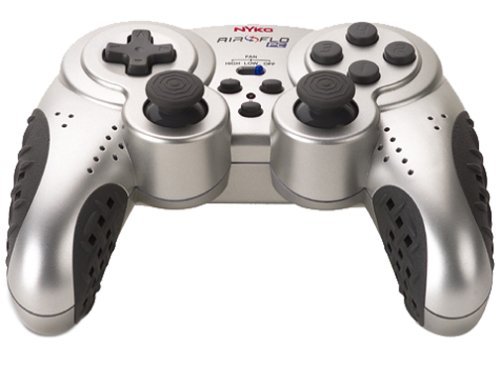
Image of the Nyko 80610 Airflo PC Game Controller, showcasinג זײַן ערגאָנאָמישן פּלאַן און קנעפּל אויסלייג.
סעטאַפּ
פּעקל אינהאַלט
- Nyko 80610 Airflo PC Game Controller (Set of two 12-button gamepads)
- Driver Installation CD (if applicable)
- באַניצער מאַנואַל (דעם דאָקומענט)
סיסטעם רעקווירעמענץ
- Operating System: Windows 2000/XP/Vista/7/8, Mac-Intel OS X
- בנימצא וסב פּאָרט
ייַנמאָנטירונג
- Ensure your computer is powered on and running.
- געפֿינען אַן בנימצא וסב פּאָרט אויף דיין קאָמפּיוטער.
- Plug the USB connector of the Nyko Airflo controller into the USB port.
- For most Windows operating systems, the controller will be automatically detected and drivers installed. If prompted, follow the on-screen instructions.
- If automatic installation does not occur, insert the provided Driver Installation CD into your computer's optical drive and follow the installation wizard.
- Once installed, the controller is ready for use. It is recommended to have the gamepad plugged in and ready before launching a game to ensure proper recognition.
אַפּערייטינג ינסטראַקשאַנז
יקערדיק קאָנטראָלס
The Nyko Airflo controller features a standard gamepad layout, including:
- Two Analog Sticks: For precise movement and camera control.
- D-Pad (Directional Pad): For directional input.
- Action Buttons: Typically labeled for in-game actions.
- Shoulder Buttons/Triggers: Located on the top of the controller.
- Start and Select/Back Buttons: For menu navigation and game functions.
Airflow Feature
The integrated airflow system helps to cool your hands during intense gaming. The controller includes a switch or button to activate and adjust the fan speed. While effective, the fan may produce some noise, especially on higher settings.
- Locate the fan control switch/button on the controller.
- Toggle the switch or press the button to turn the fan on/off or cycle through different speed settings.
שפּיל קאָנפיגוראַטיאָן
Most PC games allow for controller configuration within their settings menu. You may need to:
- Navigate to the 'Controls' or 'Options' section of your game.
- Select 'Gamepad' or 'Controller' as the input device.
- Map the in-game actions to the corresponding buttons and sticks on your Nyko Airflo controller.
- The controller may come with mapping software that allows for custom button assignments, which can be useful for games that do not natively support the controller's default layout or for remapping keyboard commands.
וישאַלט
- רייניקונג: ניצט אַ ווייכע, טרוקענע שטאָף צו ווישן דעם קאָנטראָללער. פֿאַר שווערע שמוץ, אַ ביסל ווייכער מאַכןampשווענק דעם שטאָף מיט וואַסער. פֿאַרמייַדט ניצן שטרענגע כעמיקאַלן אָדער אַברייסיוו רייניגער.
- סטאָרידזש: Store the controller in a clean, dry place away from direct sunlight and extreme temperatures. Avoid wrapping the cable too tightly to prevent damage.
- קאַבלע זאָרגן: Do not pull the controller by its cable. Always grasp the USB connector when plugging or unplugging it from your computer.
טראָובלעשאָאָטינג
- קאָנטראָללער נישט דערקענט:
- זיכער מאַכן אַז דער USB קאַבל איז זיכער פארבונדן צו ביידע דעם קאָנטראָללער און דעם קאָמפּיוטער.
- פרובירט אריינצושטעקן דעם קאנטראלער אין אן אנדערן USB פארט.
- Restart your computer with the controller connected.
- Verify that the necessary drivers are installed (refer to the Installation section).
- Analog Stick or D-Pad Issues:
- If analog sticks are not calibrated correctly in-game, try unplugging the gamepad, closing the game, plugging the gamepad back in, and then restarting the game.
- Some users have reported that the D-pad may not register diagonal inputs reliably or may simultaneously press adjacent directions. This can be a characteristic of the controller's design.
- Buttons Sticking or Requiring Heavy Pressing:
- Ensure the controller is clean and free of debris around the buttons.
- If the issue persists, it may indicate wear or a manufacturing characteristic.
- פאָכער ראַש:
- The airflow fan may produce audible noise, especially on higher settings. This is normal operation.
ספּעסאַפאַקיישאַנז
| סאָרט | ניקאָ |
| מאָדעל | 80610 Airflo |
| קאַמפּאַטאַבאַל דעוויסעס | מעק, ווינדאָוז |
| קאָנטראָללער טיפּ | גאַמעפּאַד |
| קאַנעקטיוויטי טעכנאָלאָגיע | יו-עס-בי (קאָרדעד עלעקטריש) |
| קאָליר | שוואַרץ / זילבער |
| נאָך פֿעיִקייטן | Ergonomic, Integrated Airflow System |
| קנעפּל קוואַנטיטעט | 12 (per gamepad) |
| ייַזנוואַרג פּלאַטפאָרמע | PC |
| קאַבלע לענג | עקסטרע לאַנג |
| GTIN/UPC | 743840806103 |
| ASIN | B0000TNJWM |
וואָראַנטי און שטיצן
For information regarding warranty coverage, technical support, or replacement parts, please contact Nyko customer service directly. Details can typically be found on the manufacturer's official webזייטל אדער פּראָדוקט פּאַקאַדזשינג.
ביטע באַהאַלטן אייער קויפן-באַווייַז פֿאַר יעדע וואָראַנטי-פאָדערונג.